Home

Download

Buy Now

Tutorials

Contact US

How to use PowerISO as ISO Creator?

You are here:  Tutorials > How to use PowerISO as ISO Creator?


There are three ways to create an ISO file with PowerISO, using the main program, using the shell context menu, or using the drag-and drop.

Usage1: Create ISO file using the main program:

  • Run PowerISO.

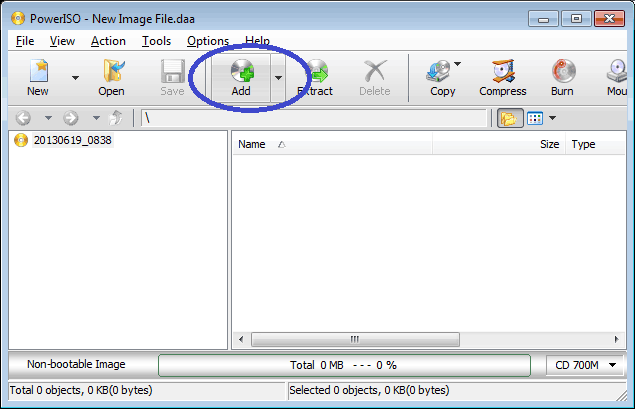
  • Click on the "Add" button on toolbar to add files and folders. You can also directly drag files and folders from Windows Explorer to the file view.

  • Choose the menu "Action > New Folder" to create a new folder.

  • Choose the menu "Action > Change Label" to change the default label.

  • Choose the menu "File > Properties" to set the iso file properties.

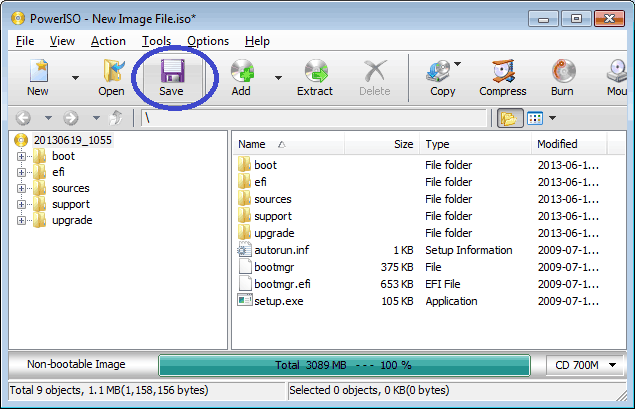
  • Click on the "Save" button on toolbar, or choose the "File > Save" menu to save the iso file.


Usage2: Create ISO file using the shell context menu:

  • Open "My Computer" and select the files which you want to add to iso file.

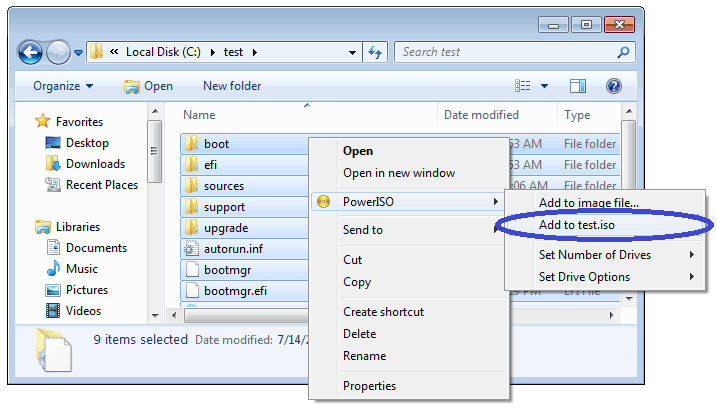
  • Right-click on the files selected, the shell context menu will popup.

  • Choose the menu "Add to xxxxx.iso".

  • PowerISO main program will start to run. It will automatically add all files and folders selected to the current compilation, then save the iso file with the specified name.

(Notes: The default image type for saving is DAA, you can change it to ISO format in PowerISO configuration dialog.)

Usage3: Create ISO file using the drag and drop:

  • Run PowerISO.

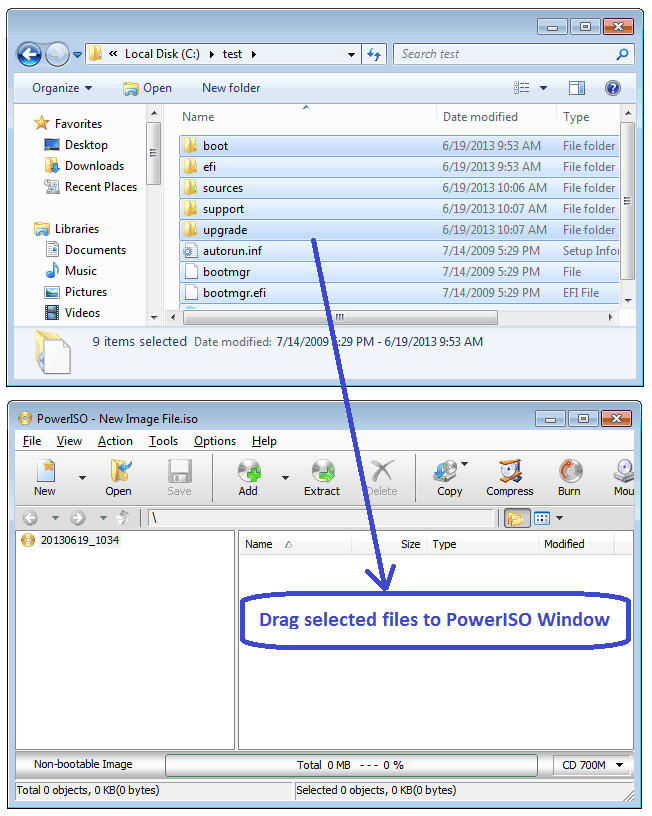
  • Open "My Computer" and select the files which you want to add to iso file.

  • Drag all files and folders selected to the PowerISO window.

  • Click the "Save" button to save the iso file..


Copyright 2004-2010 PowerISO Computing, Inc. All rights reserved.