|
|||||||||
|
Convert image file format from Linux command line |
|||||||||
|
You are here: Tutorials > Convert image file format from Linux command line |
|||||||||
|
|
|||||||||
|
PowerISO for Linux can convert various disc image file to ISO, BIN / CUE, or DAA format. If the output format is DAA format, you can specify a password to protect the image file, or split the image file to multiple parts. Usage: poweriso convert <source image file> [-switches]
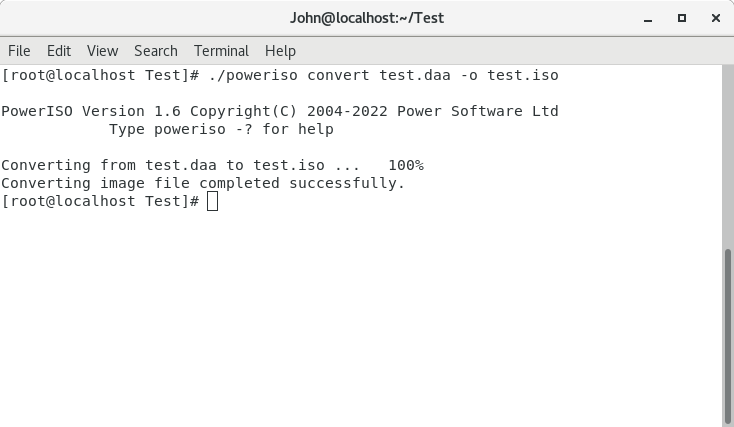
Example1: Convert DAA file to ISO file from Linux command line. Command: poweriso convert test.daa -o test.iso
Example2: Convert DMG file to ISO file from Linux command line. Command: poweriso convert xcode.dmg -o xcode.iso
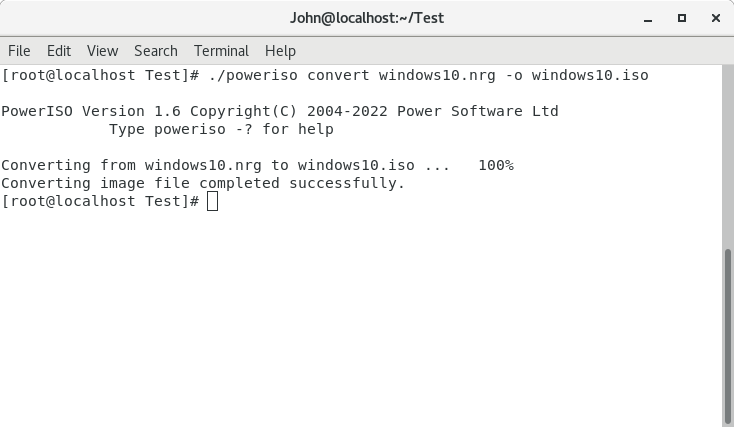
Example3: Convert nrg file to iso file from Linux command line. Command: poweriso convert windows10.nrg -o windows10.iso
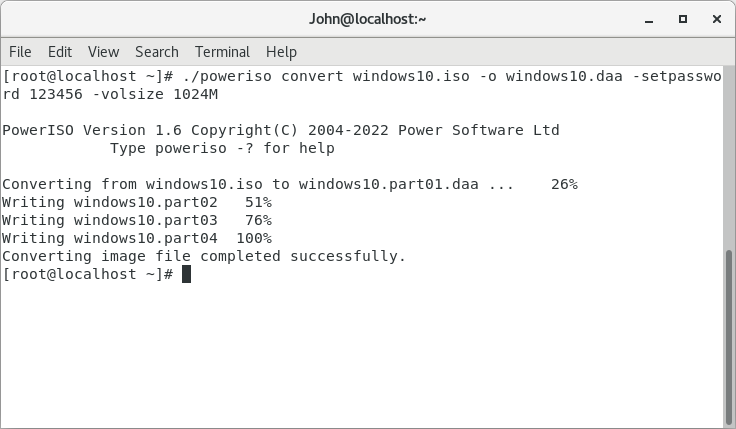
Example4: Convert ISO file to DAA format from Linux command line. Split the output daa image file to multiple parts and add password to protect the file. Command: poweriso convert windows10.iso -o windows10.daa -setpassword 123456 -volsize 1024m
|
|||||||||
|
Copyright 2004-2025 PowerISO.com All rights reserved. |
|||||||||