|
You can run piso.exe to create ISO file or other image formats
from command line or a batch file. piso.exe supports lots of switches,
thus you can specify image file properties when creating the image file. The
destination image format can be iso file, daa file, or bin / cue file.
Usage: piso create [-switches]
<Switches>
-
-o: Specify output image file name.
-
-ot <iso|daa|bin>: Specify output image
file type. If not specified, the image type will be determined by file name
suffix.
-
-add <local dir/file name> <dir in
image file>: Add local file or directory to image file.
-
-volsize <n>: Split output image file to
multiple volumes, and set volume size to <n>. Example: -volsize 100M
-
-setpassword <password>: Set password for
output image file. Example: -setpassword 12345678
-
-label <vol label>: Set volume
label for output image file. Example: -label BACKUP
-
-joliet <1|2|3>: Set joliet level
for output image file. Example: -joliet 3
-
-udf <on|off>: Enable or disable
UDF option for output image file. Example: -udf on
-
-iso-name-len <12|30|221>: Set
iso9660 file name length for output image file. Example: -iso-name-len
221
-
-joliet-name-len <64|110>: Set
joliet file name length for output image file. Example: -joliet-name-len
110
-
-allow-lower-case-iso-name: Allow lower
case iso9660 file name for output image file.
-
-disable-optimization: Disable file space
optimization for output image file.
-
-file-datetime <mm-dd-yyyy-hh:mm:ss>:
Set file date time for output image file. Example: -file-datetime
12-20-2008-08:00:00
-
-vol-creation-datetime <mm-dd-yyyy-hh:mm:ss>:
Set volume creation date time for output image file.
-
-vol-modification-datetime <mm-dd-yyyy-hh:mm:ss>:
Set volume modification date time for output image file.
-
-vol-effective-datetime <mm-dd-yyyy-hh:mm:ss>:
Set volume effective date time for output image file.
-
-vol-expiration-datetime <mm-dd-yyyy-hh:mm:ss>:
Set volume expiration date time for output image file.
-
-comment: Set comment for output image
file.
-
-comment-from-file <file name>:
Load comment from the file.
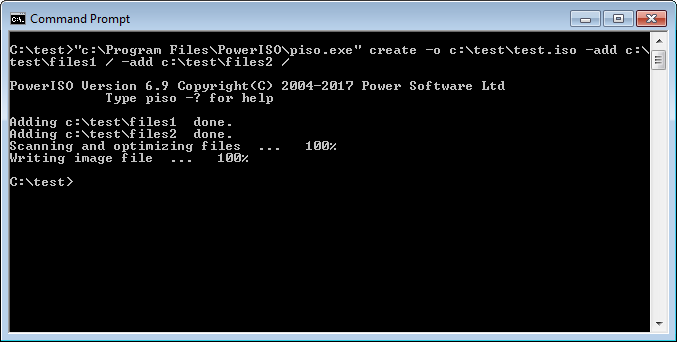
Example: Create ISO file from c:\test\files1 and
c:\test\files2. The output ISO file is c:\test\test.iso.
Command: piso create -o c:\test.iso -add c:\test\files1
/ -add c:\test\files2 /
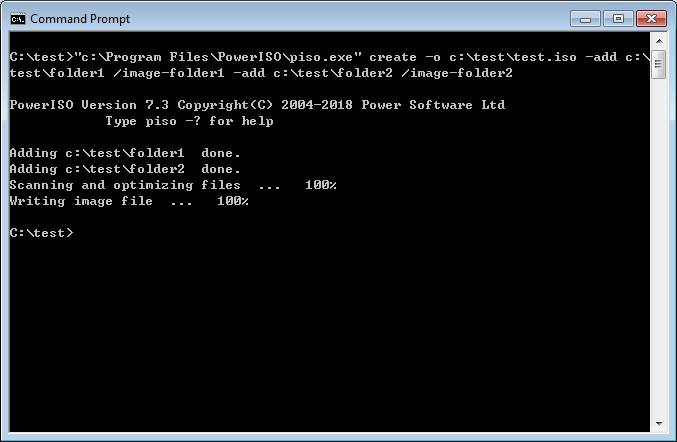
Example: Create ISO file from files in c:\test\folder1 and
c:\test\folder2. The folders name in image will be image-folder1 and
image-folder2. The output ISO file is c:\test\test.iso.
Command: piso create -o c:\test.iso -add c:\test\files1
/image-folder1 -add c:\test\files2 /image-folder2
|
